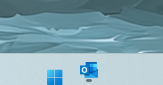
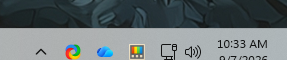
Start11 V2 v2.8 showing cutoff taskbar icons

For some reason, Start11 V2 (v2.8) is showing cutoff icons on the taskbar. Not every icon. Just the SysTray and the Start Button. If I change to a custom Start Button, that looks fine, but SysTray is still off.

On this exact same machine, on another dual-boot partition, running the exact same version of Windows 11, it looks fine. Same software installed, same drivers, same two monitors. Nothing is different, except they are each installed on a different NVMe (same model Samsung drives). Same version of NVIDIA video drivers. Nothing is different.

Why would it work fine on one install and not the other, even with everything else being the same?

Windows 11: 26H1 28000.2804
Feature Pack: 1000.26100.357.0
NVIDIA GeForce Game Ready Driver: 616.64

Intel i9-14900K / 64 GB DDR5 / two Samsung 990 Pro NVMes / RTX 4080 Super 16GB

Primary Display: Alienware AW3821DW running at 3840x1600 @ 144Hz
Secondary Display: Dell 27" running at 1920x1080 @ 60Hz
195 views 6 replies
Reply #1 Top


Hello,

Sorry to hear you are having issues. From what I understand Windows 11 26H1 is special release for Snapdragon Copilot+ release, not sure if it was design for Intel Chips. 

But, to be sure would like to suggest Please try, uninstall Start11, reboot immediately (important), download latest version available in your account product download page: https://store.stardock.com/myaccount/products. Install it, reboot immediately again. Retest it and report back.

Thank you,

Basj,

Stardock Community  Assistant.

Reply #2 Top

You may need to set the option in Start11 to make it think you have a touch screen system.

This is on the taskbar settings page at the bottom.

Reply #3 Top
Quoting VArterJr,

Windows 11: 26H1 28000.2804

End of VArterJr's quote

from Windows Central

"Microsoft is now shipping a new version of Windows 11, dubbed version 26H1, which is only available on new hardware powered by Qualcomm's Snapdragon X2 and upcoming NVIDIA N1X chips. This is a special offshoot version of Windows 11 designed specifically for these new devices."

Reply #4 Top

I work for Microsoft. You can download 26H1 from the download site. I run it on my Intel based machine just fine. And as I noted, I have two boot drives on this machine. It works fine on one and not the other. 100% of the hardware is exactly the same. The core of 26H1 is the same on Intel.

Windows 11, version 26H1 | Microsoft Support

If 26H1 was the issue, then it would be the same issue on both boot drives since they are running 100% exactly the same OS, drivers, misc software, and such.

This is not a touchscreen system. It's a desktop with two displays (as noted in my OP). I'll try the Start11 V2 uninstall and reinstall, even though these are both clean builds.

Reply #5 Top

The dual boot detail is the most useful thing in your post and it points somewhere specific. Same machine, same build, same drivers, one install correct and one not, means the difference lives in stored settings rather than in the OS or the hardware. Everything else is held constant by your own setup.

That puts you in a better position than most people who report this, because the working partition is a reference install. Compare the taskbar settings side by side rather than only looking at the broken one.

The ones that move systray and start button metrics are the advanced taskbar cluster added in 2.5, icon size, button width and height, plus whether the enhanced taskbar is enabled and whether small taskbar mode is set. Taskbar size controls need the enhanced taskbar on to apply at all, so that one is worth checking first.

Two documented catches in that cluster. The icon size, width and height options only apply properly when you are not using OS autohide, so autohide differing between the two installs changes whether they take effect. And when we added small taskbar icon support in 2.56, the changelog notes you need to reset small mode from Start11 settings for it to apply, so if either install is in small mode, toggling it off and back on is the documented way to make the sizing reapply.

Worth doing that comparison after the reinstall rather than instead of it, since a reinstall puts settings back to defaults and you will want to know what changed.

One thing worth keeping rather than ruling out: Neil was suggesting you make Start11 behave as though the machine were a touch system, which is a rendering option rather than a question about your hardware.

Reply #6 Top

OK. I'll look at that. The machines have the same Windows config (Desired State Config) and the same apps (I have a scripted install to ensure everything matches on my machines). And for all of my Stardock Object Desktop apps they use the same configuration. I imported the exact same config from the working machine to the one that isn't for Start 11 v2. It's an interesting issue. Haven't see this before in years and years of using it.